
Overview
This article details an example of how to get SkillSync Course Enrollments synced into Salesforce using dataloader.io. This is just one of many methods available to exchange data between Salesforce and SkillSync. If you use another tool or process to import data into Salesforce, simply skip to the SkillSync Setup section for details on scheduling a data export from SkillSync. You might also consider using our RESTful API to build an integration between your Salesforce instance and SkillSync.
In this example, the SkillSync Course Enrollment information will be attached to a Salesforce Contact to show the courses completed by individual Contacts. The process described in this article can also be used as a rough guide for exporting any type of data from SkillSync and importing it as a custom object in Salesforce.
Prerequisites
- Dataloader.io Account (Preferably Enterprise version).
- User records in SkillSync that share some unique identifier with Contacts in Salesforce. In this example, we already have SkillSync users with External IDs that match up to Salesforce contact ID. This is something that needs to be done as part of creating/importing the users into SkillSync.
- A scheduled data export (sometimes called a Custom Report) from SkillSync. Contact your Customer Success Manager for more information on this additional service.
- An SFTP server from which files can be delivered to and picked up (see notes in SkillSync Setup section).
Disclaimer
SkillSync LMS supports scheduled data exports which can then be imported into other systems in general (not only Salesforce).
This guide is provided to our clients as a convenience only, based on our past experience working with SkillSync data exports, Salesforce, and dataloader.io.
Salesforce Setup
How to Create a Custom Object
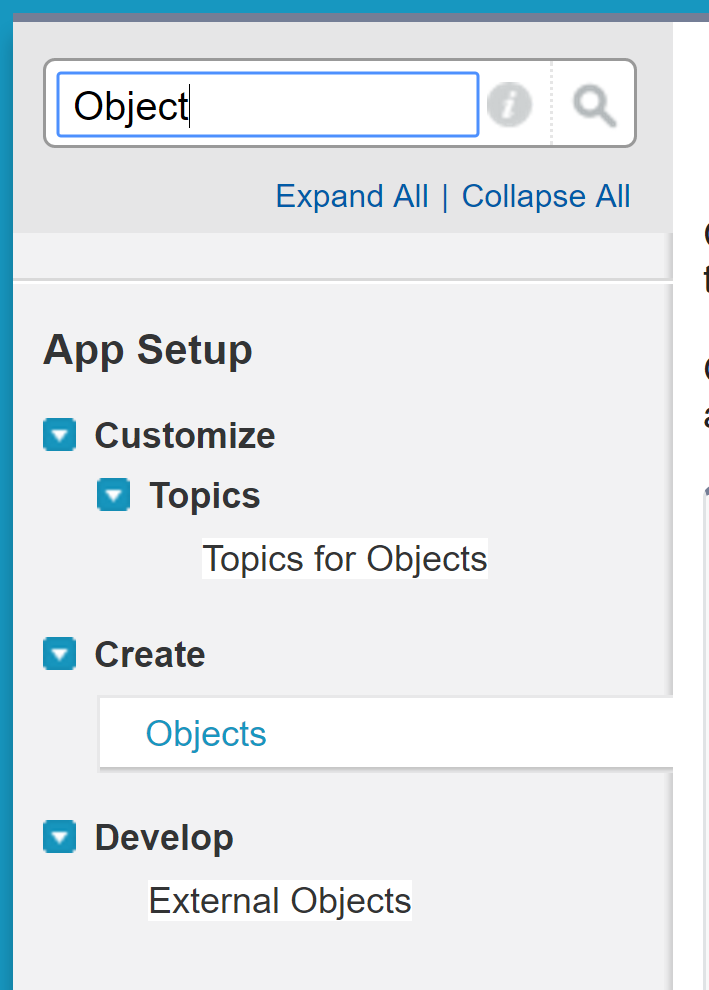
- Under Setup: search for Object in the search field:
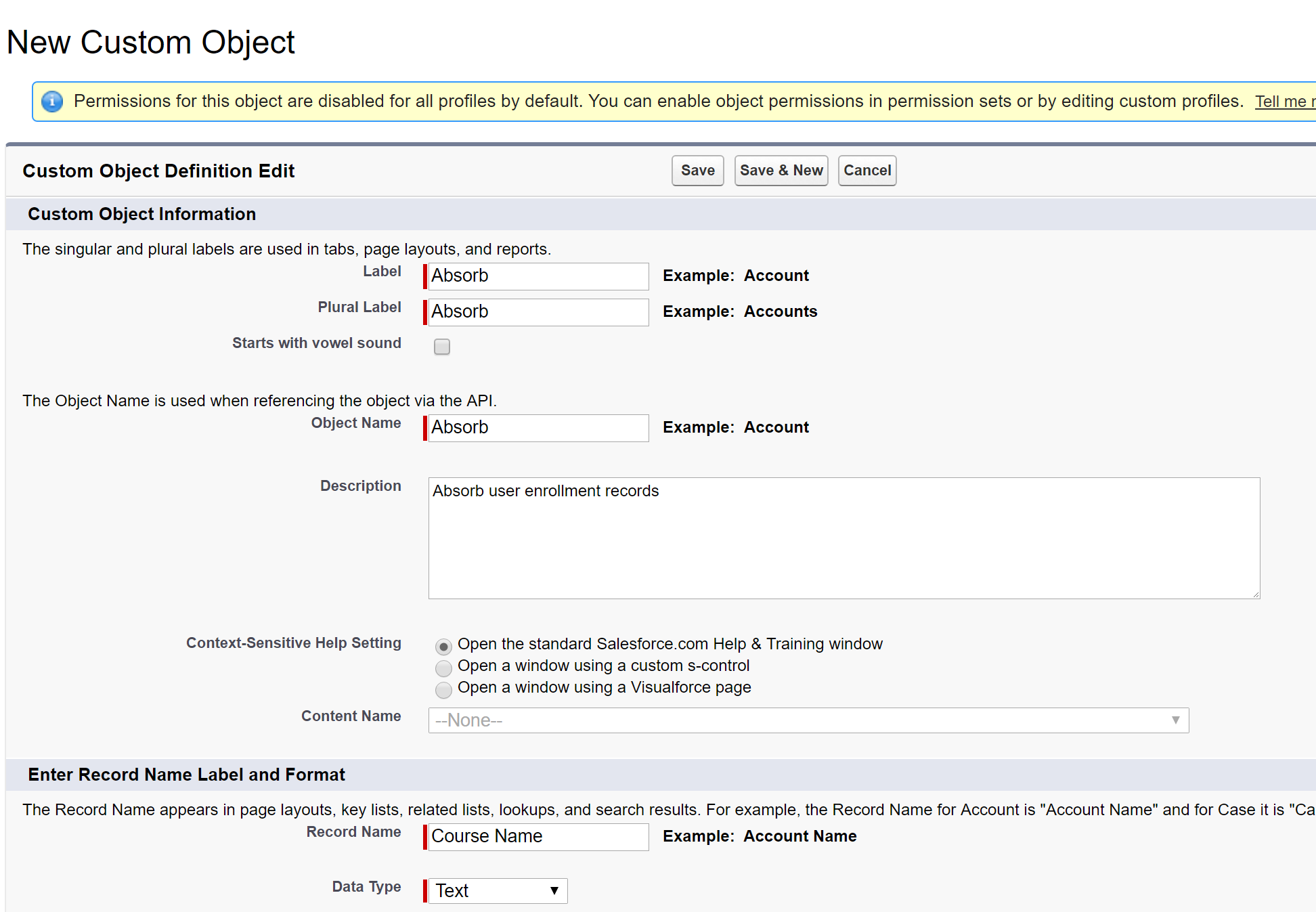
- Create a custom object:

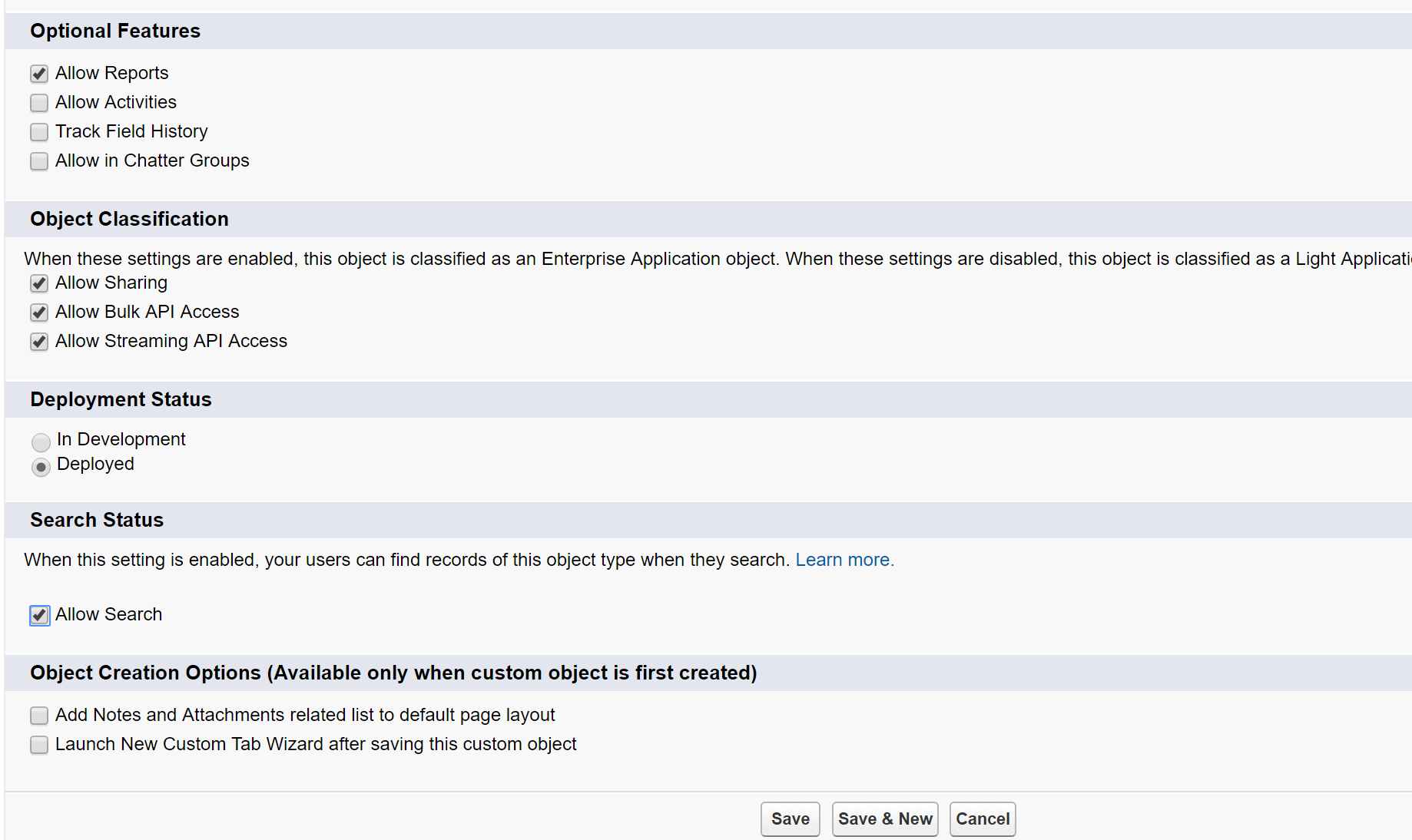
- Optional features:
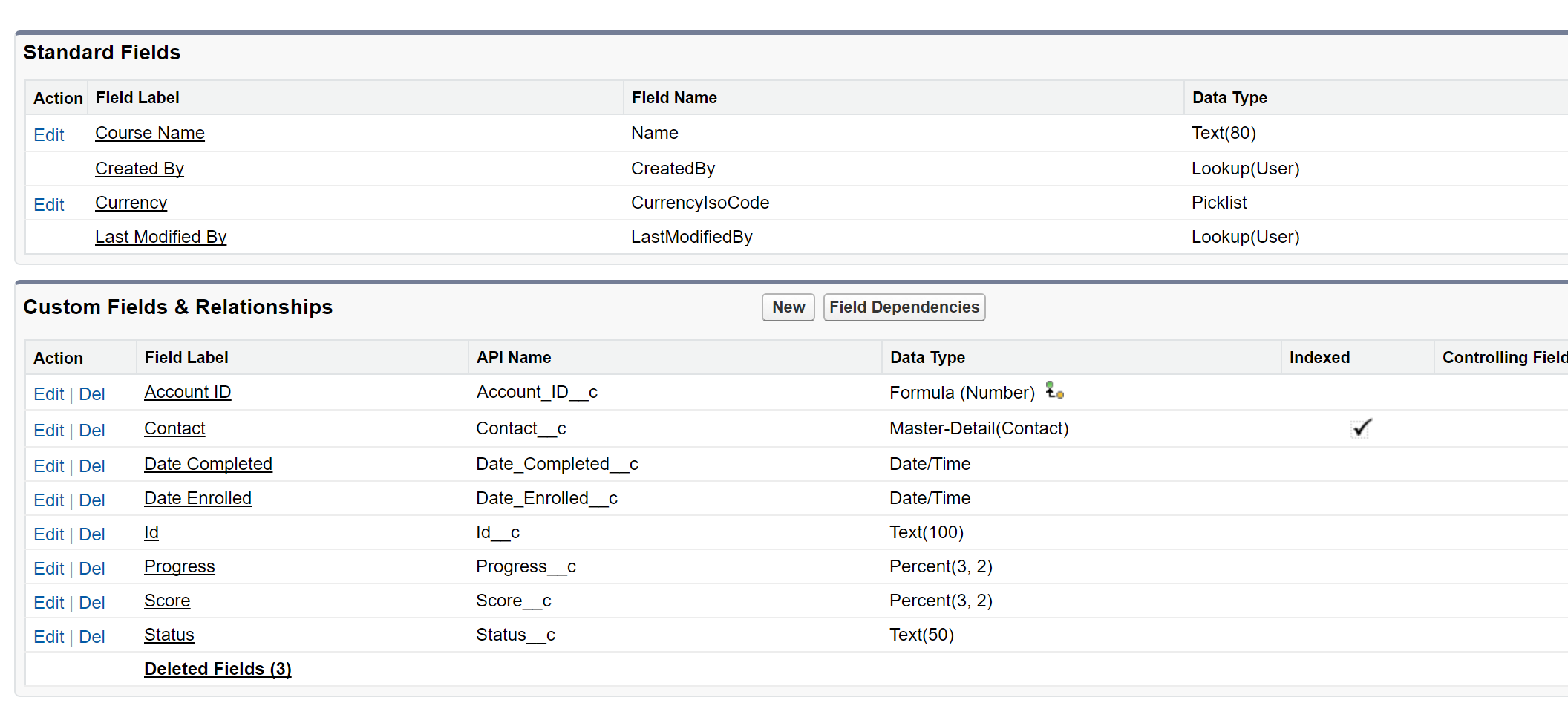
- Add custom fields to the object. The contact field is important as it allows you to relate the SkillSync Course Enrollment record to a Contact in Salesforce.
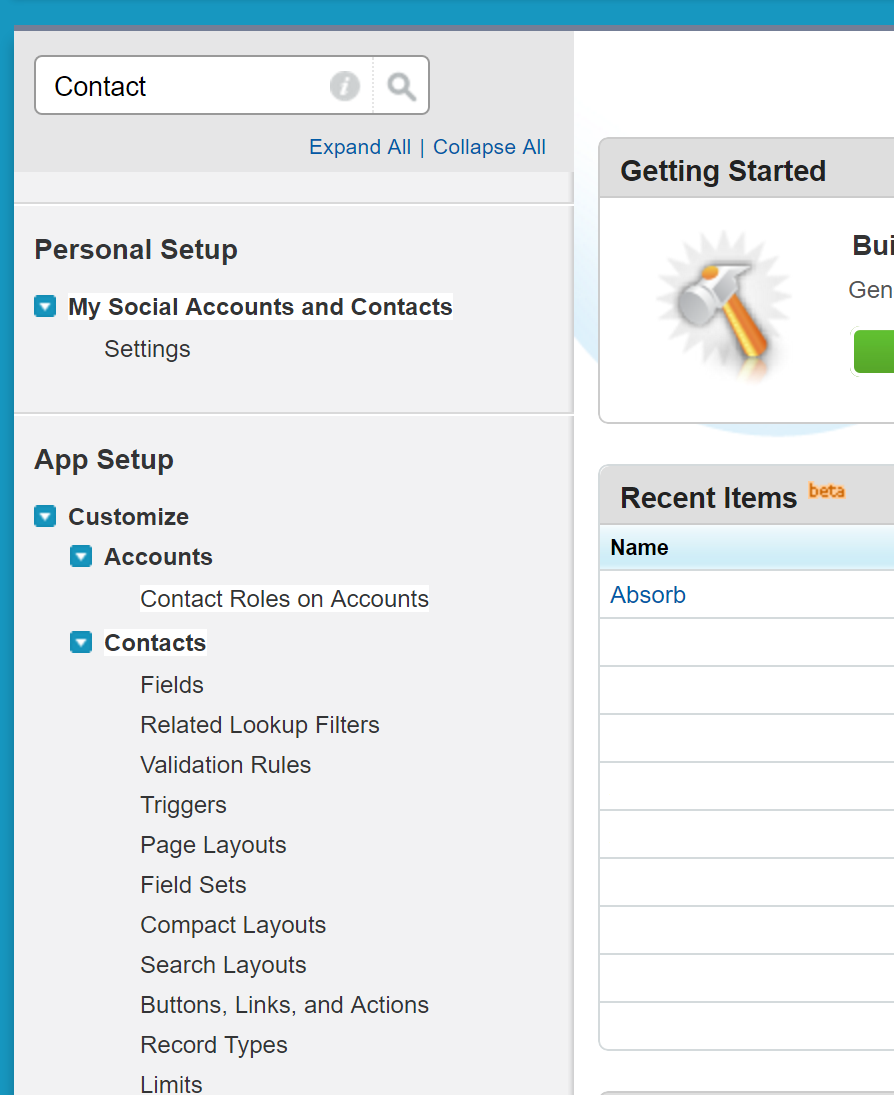
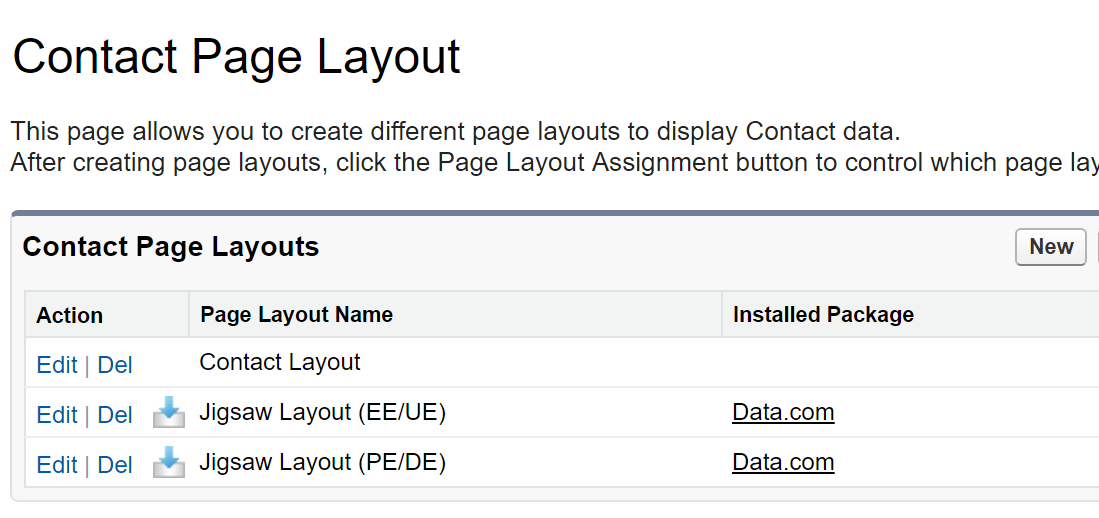
- Add the Object as a related list to the Contact Layout. To do so, go to Setup, search for “Contacts” in the search field and click on Page Layout under the Contact Object.
- Select the Salesforce layout you want to update and add the Related object previously created to the layout. Then click Save.

SkillSync Setup
Next, you will need a scheduled custom CSV file export from SkillSync. Contact your Client Success Manager to discuss this additional service. The export should contain Course Enrollment records, and while the exact fields to include will depend on your own requirements, we usually recommend including the following columns:
- Id (record guid of the enrollment record)
- Name (course name)
- Salesforce Contact ID OR some way to link the record (The user's External ID in this example)
- Date Completed
- Date Enrolled
- Progress(%)
- Score(%)
- Status
Dataloader.io does not support FTPS for file transfers at this time. Unfortunately, SkillSync can only provide FTPS accounts, so you will need to obtain an SFTP for this process. Provide the details to SkillSync as part of creating the custom export - this should be the same SFTP location that you will set up dataloader.io to process files from in the next section.
Dataloader.io Setup
Once you have a scheduled custom export from SkillSync and a custom object setup in Salesforce to receive the data, it's time to put it all together. Create an upsert task using Dataloader.io to update the information from the CSV file. Note that we recommend subscribing to the Enterprise version of Dataloader.io as there is a daily limit on the number of records that can be synchronized with the free version.
- In Dataloader.io, click on “New Task” > Import to create a new scheduled import task.
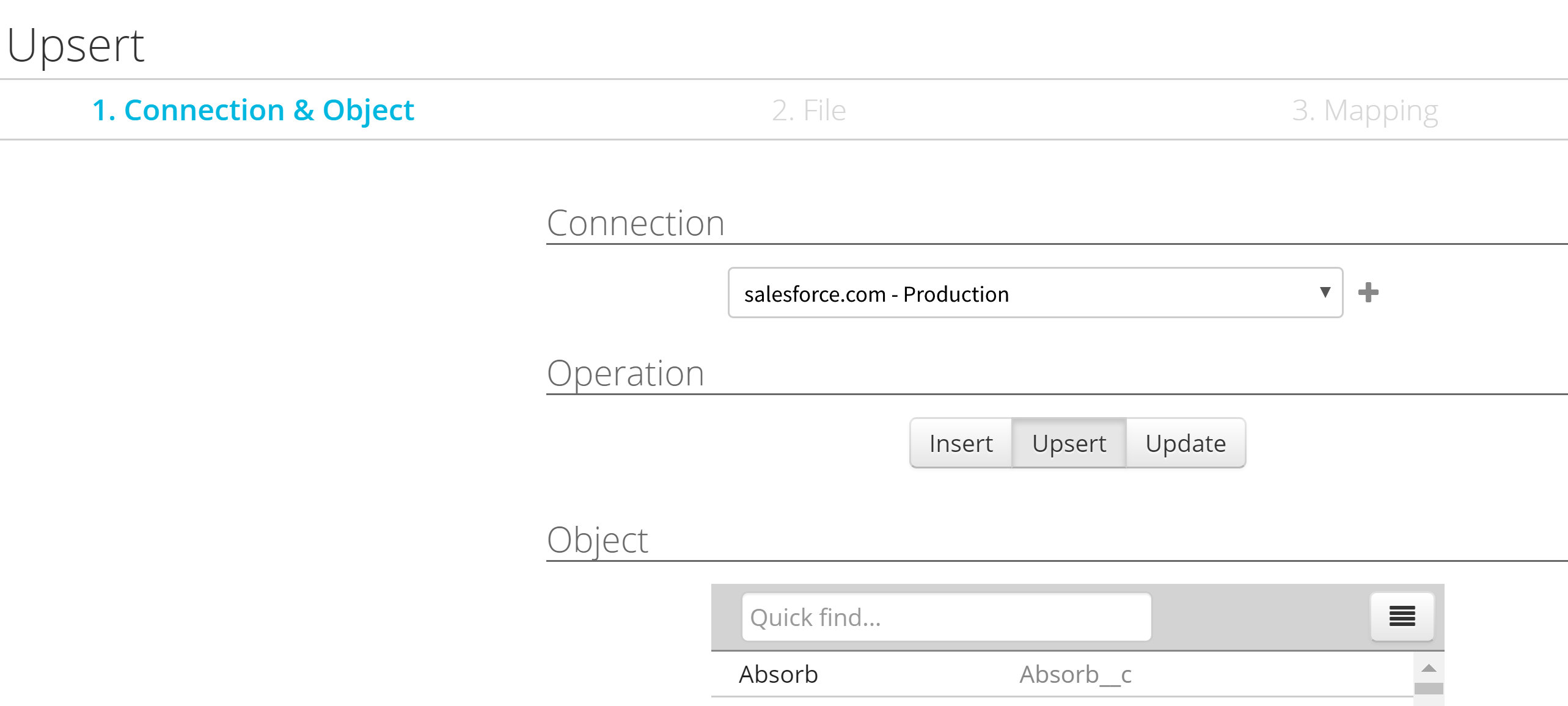
- Select the Upsert type and select the Custom object you previously created in Salesforce.
- Select the file that will be synced with Salesforce.
- Note that only a unique file can be selected and dataloader.io doesn’t handle files with timestamps.
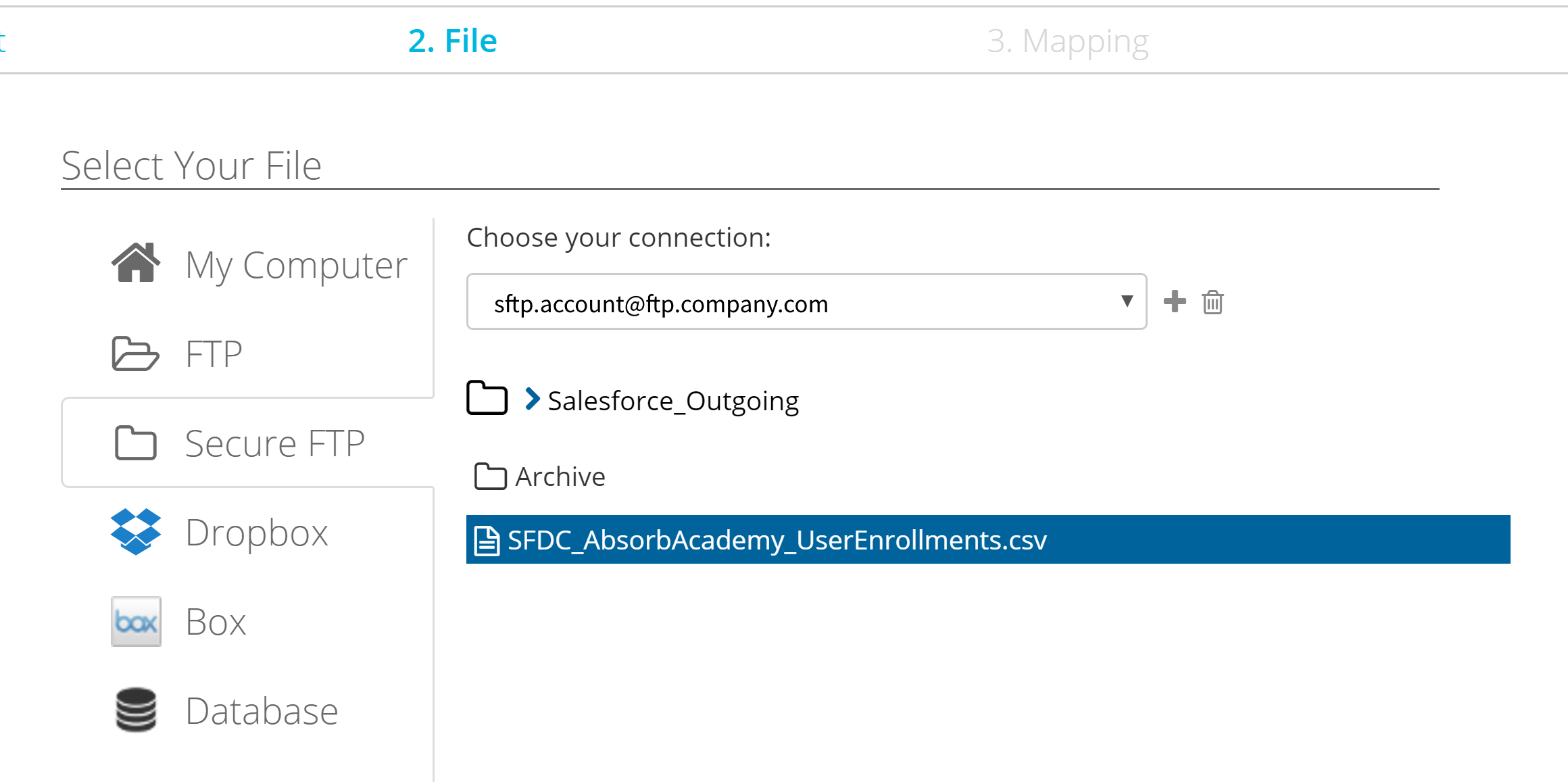
- Note that only a unique file can be selected and dataloader.io doesn’t handle files with timestamps.
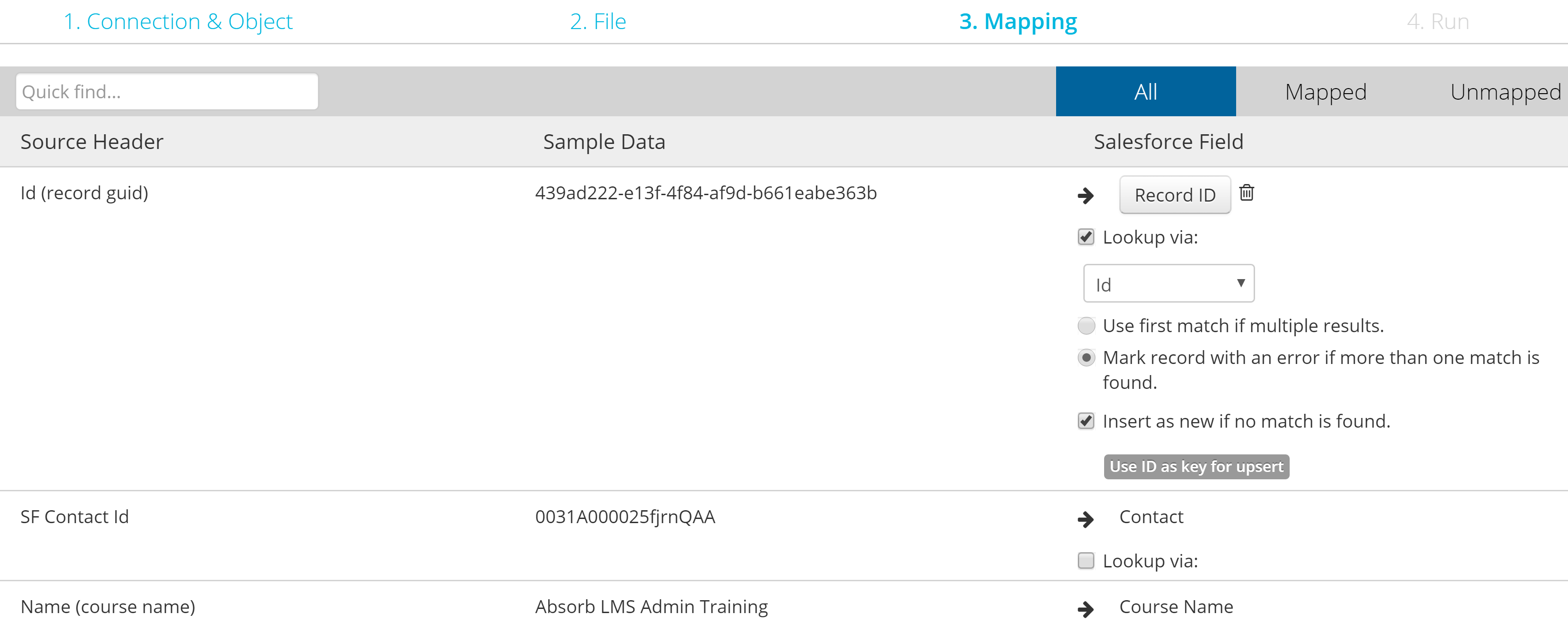
- Click next to map the fields to the Salesforce object and complete the following mapping for the Id and the Salesforce Contact Id. The other fields should be mapped automatically if the names match, otherwise, you need to complete the mapping (e.g. Course Name):
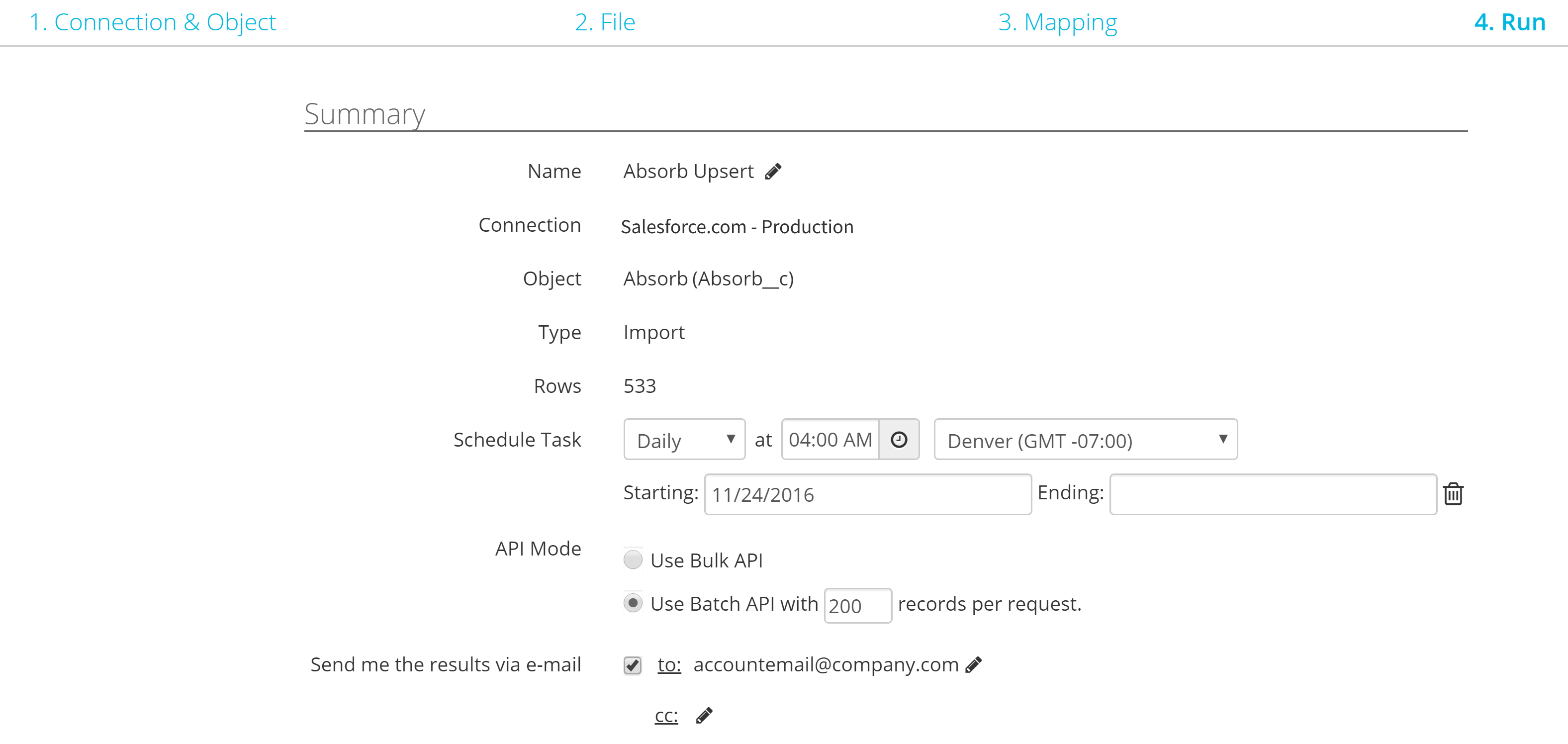
- Add scheduling for the Upsert task make sure it’s AFTER the Custom report generation:
Click for a larger image
Once the upsert task runs, you should see the SkillSync Course Enrollment records under your Contact object in Salesforce.
References
https://dataloader.zendesk.com/hc/en-us/articles/219333148
https://dataloader.zendesk.com/hc/en-us/articles/218959408
https://dataloader.zendesk.com/hc/en-us/articles/219766327
Comments
0 comments
Article is closed for comments.