
Overview
The Terms & Conditions function is a great way to ensure learners have are informed on company policies before starting a course. They can help manage customer expectation, increase protection from possible disputes or complaints, and outline exactly what they are receiving when accessing eLearning with your company. Terms & Conditions can be added to any Online Course, Instructor Led Course, or Curricula and must be accepted before a learner is able to access course content.
Why Include Terms & Conditions
They are many reasons why you may want to outline Terms & Conditions for learners. They allow you to explain, in detail, what is covered in taking a course with your company. This can include pricing, extensions, amount of attempts, and much more. Outlining policies in this way can help to ensure all details, even those that are less obvious, are not overlooked. The more complete and clear the Terms & Conditions are, the better learner expectations are managed. In the case of disputes, this section can be referenced and can help to enforce your company's policies. This section can also help to enforce intellectual property rights or privacy policies.
Adding Terms & Conditions
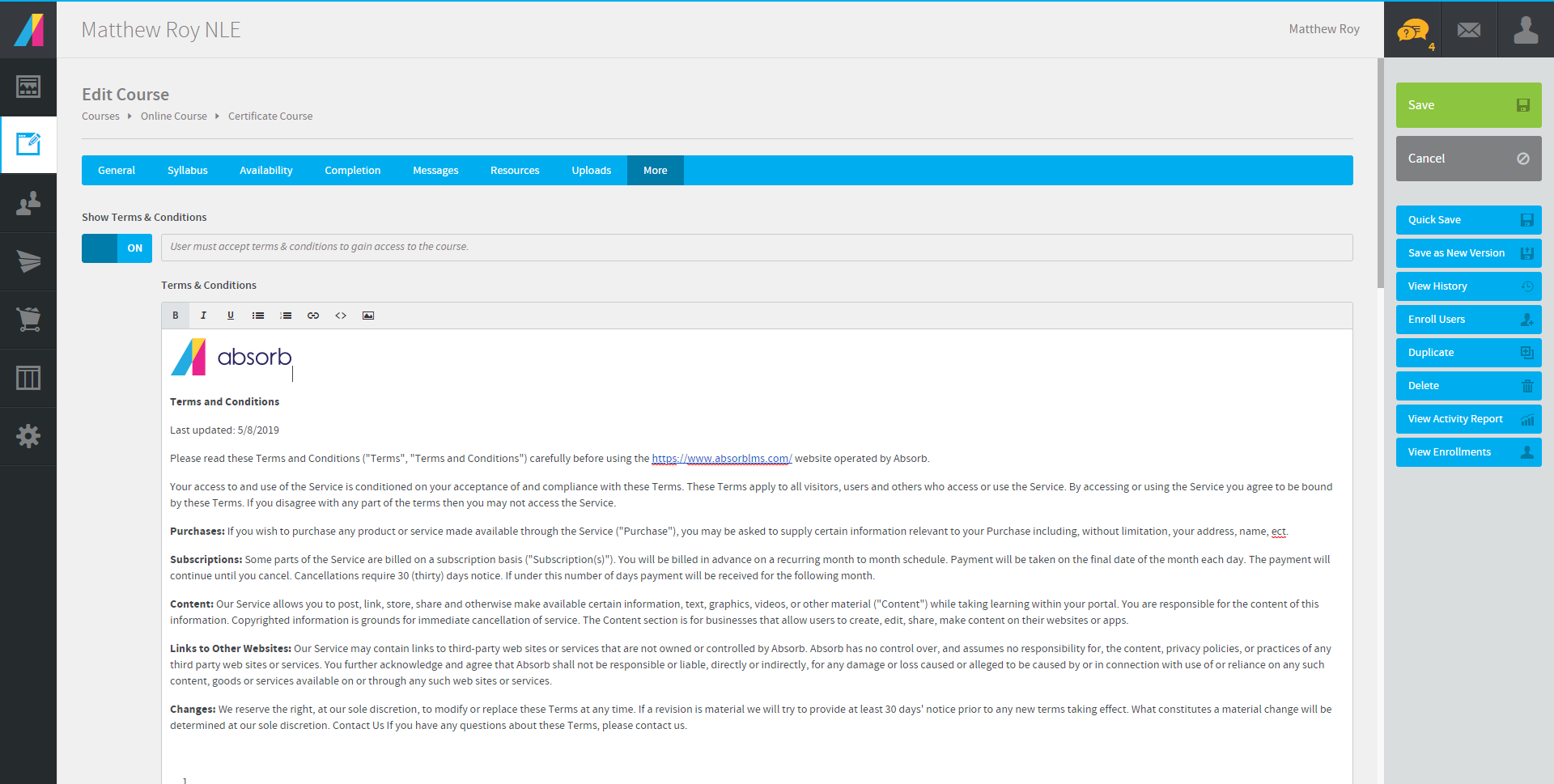
To add Terms & Conditions to an Online Course, Instructor Led Course, or Curricula, navigate to the More tab when creating or editing the course. Change the toggle for Show Terms & Conditions to On and you will be presented with a text field to enter the terms you would like your learners to accept. Adding links, images, HTML, and other formatting will allow you to customize the popup to be consistent with your company’s branding.
When a learner selects the course they will be prompted to agree to the Terms & Conditions before they are able to proceed. The overlay will first prompt the learner to view the full terms and conditions.
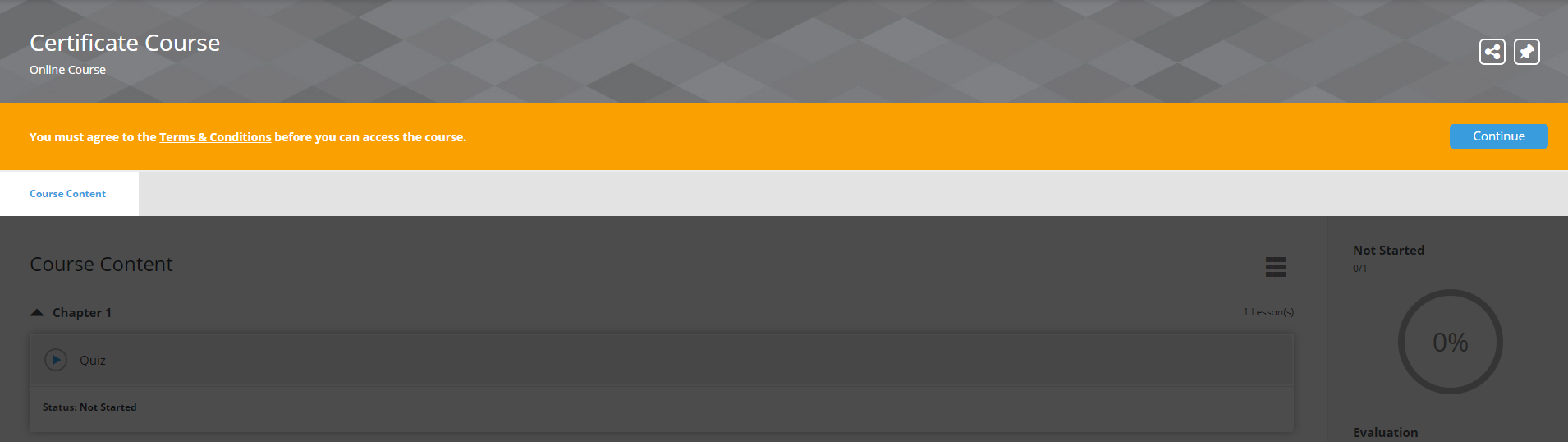
After selecting Continue on the overlay, the user will then be able to review and accept the Terms & Conditions. After they select the I Agree button they will be able to access and begin the course. Should the learner select Disagree or close the popup they will be brought back to the previous screen with the overlay and will not be able to proceed until they accept.
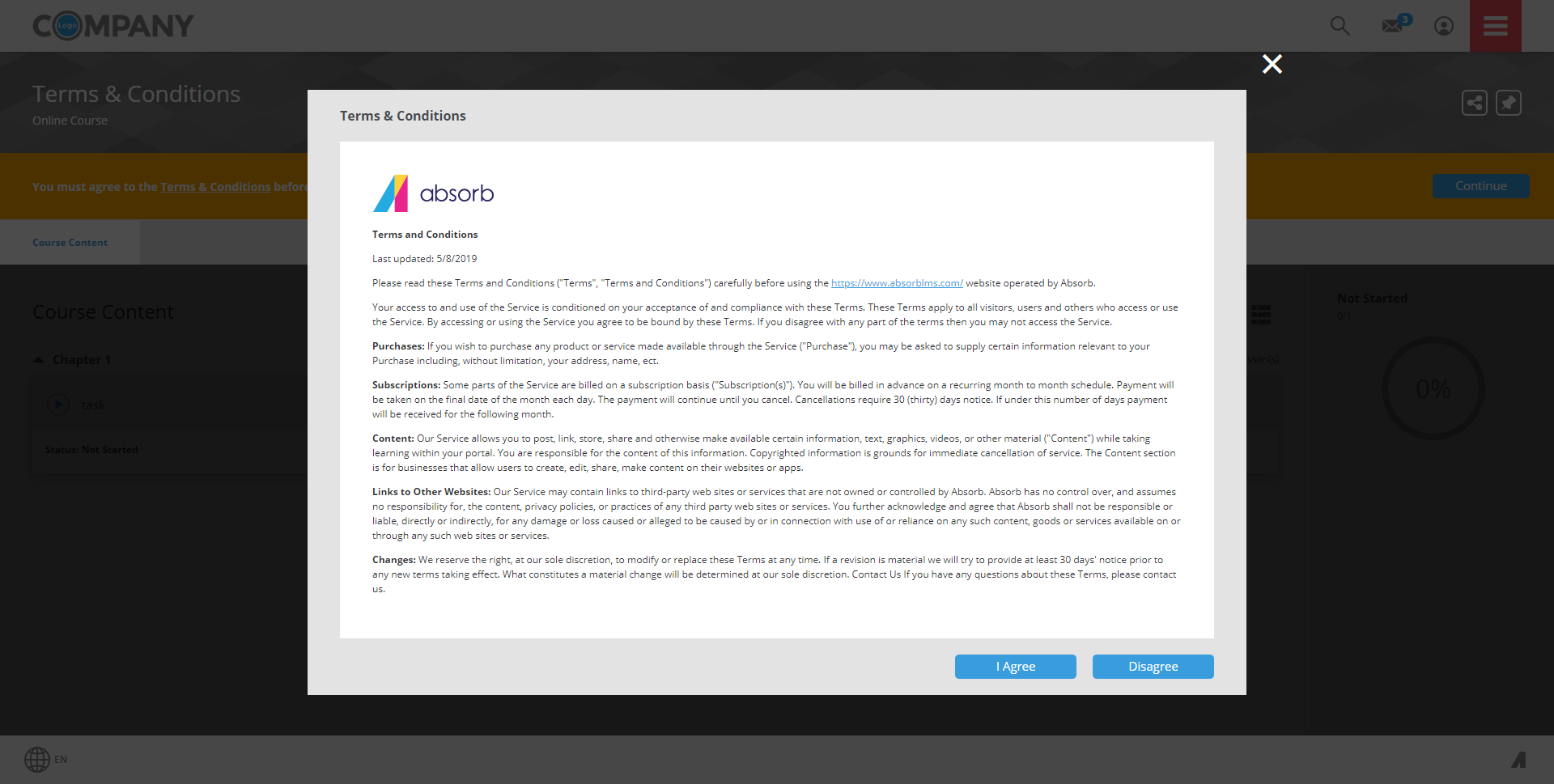
It is important to note, similar to other fields that are input by admin, Terms & Conditions only support a single language. Whatever text is entered into the system in this field will be displayed on the popup the learner must accept to progress.
Updating Terms & Conditions
Though you can modify your Terms & Conditions at any time, it is important to note that any modifications will only apply to learners enrolled after the changes are made but it will not trigger the new terms to be sent to the learners that have previously enrolled. If you need the new terms to be sent out from SkillSync LMS, you will need to have a one time update completed by our Product Support Team.
Comments
0 comments
Article is closed for comments.