
This article contains instructions and details about SkillSync Create LI (Integrated Specific)
Now customers can use any Create Course as a lesson object in the SkillSync LMS.
Sharing a published Create Course as a lesson in one of the LMS courses
Note: The Create course must be published in the SkillSync LMS and marked as "active".
Select the LMS Course to which you want to add the create course as an object:
-
-
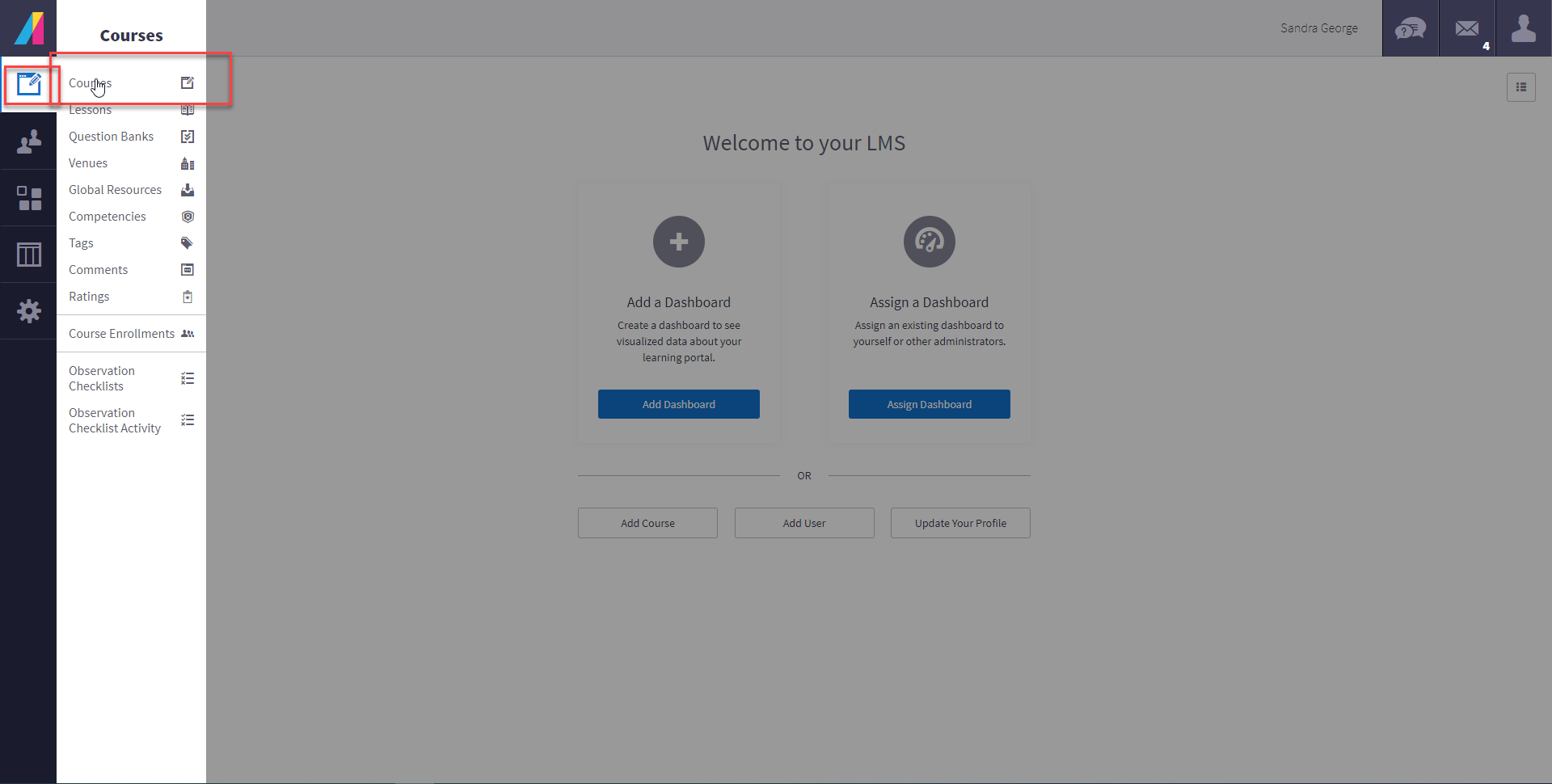
- Go to Courses
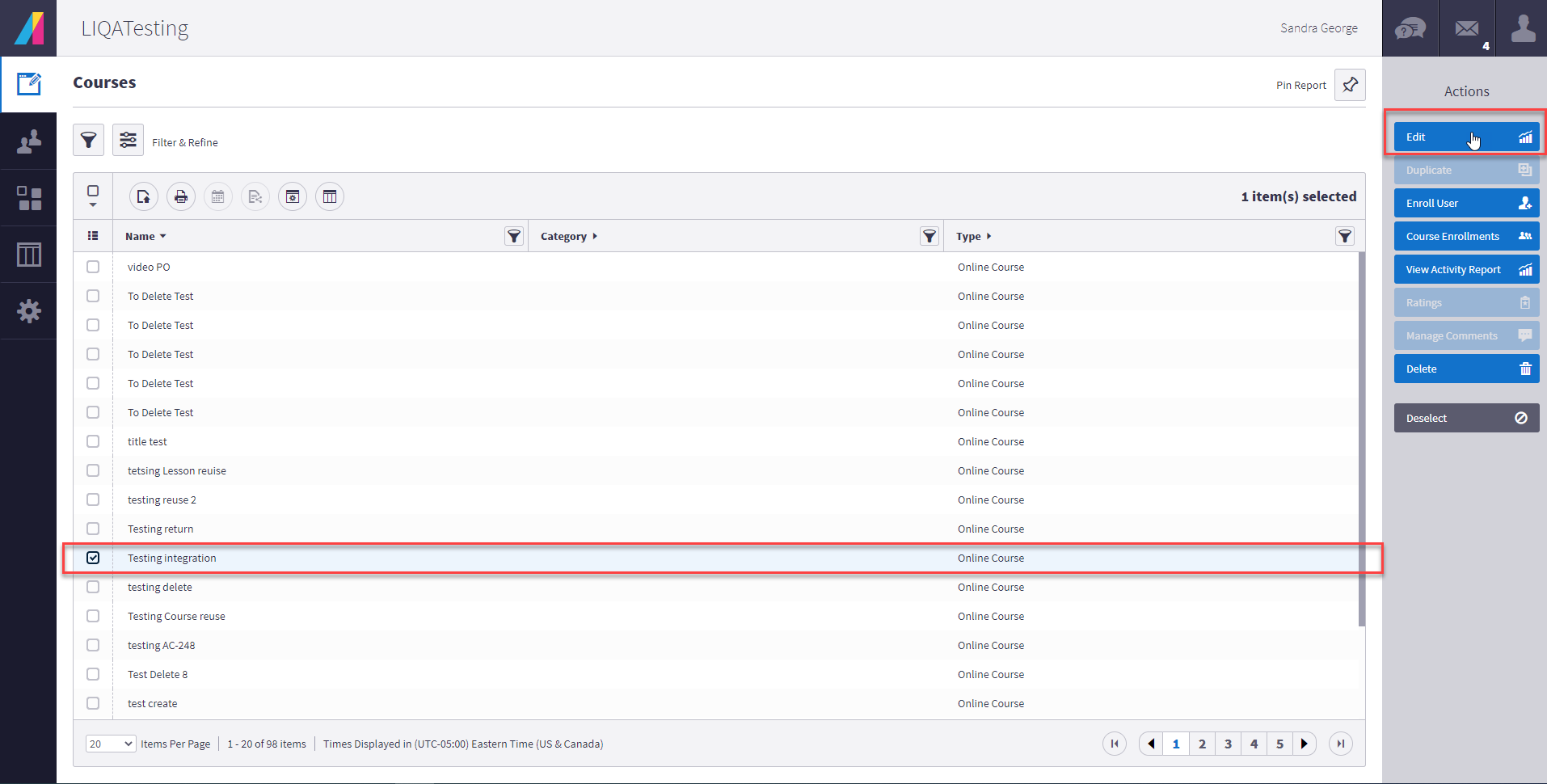
- Select your LMS course, click "Edit."
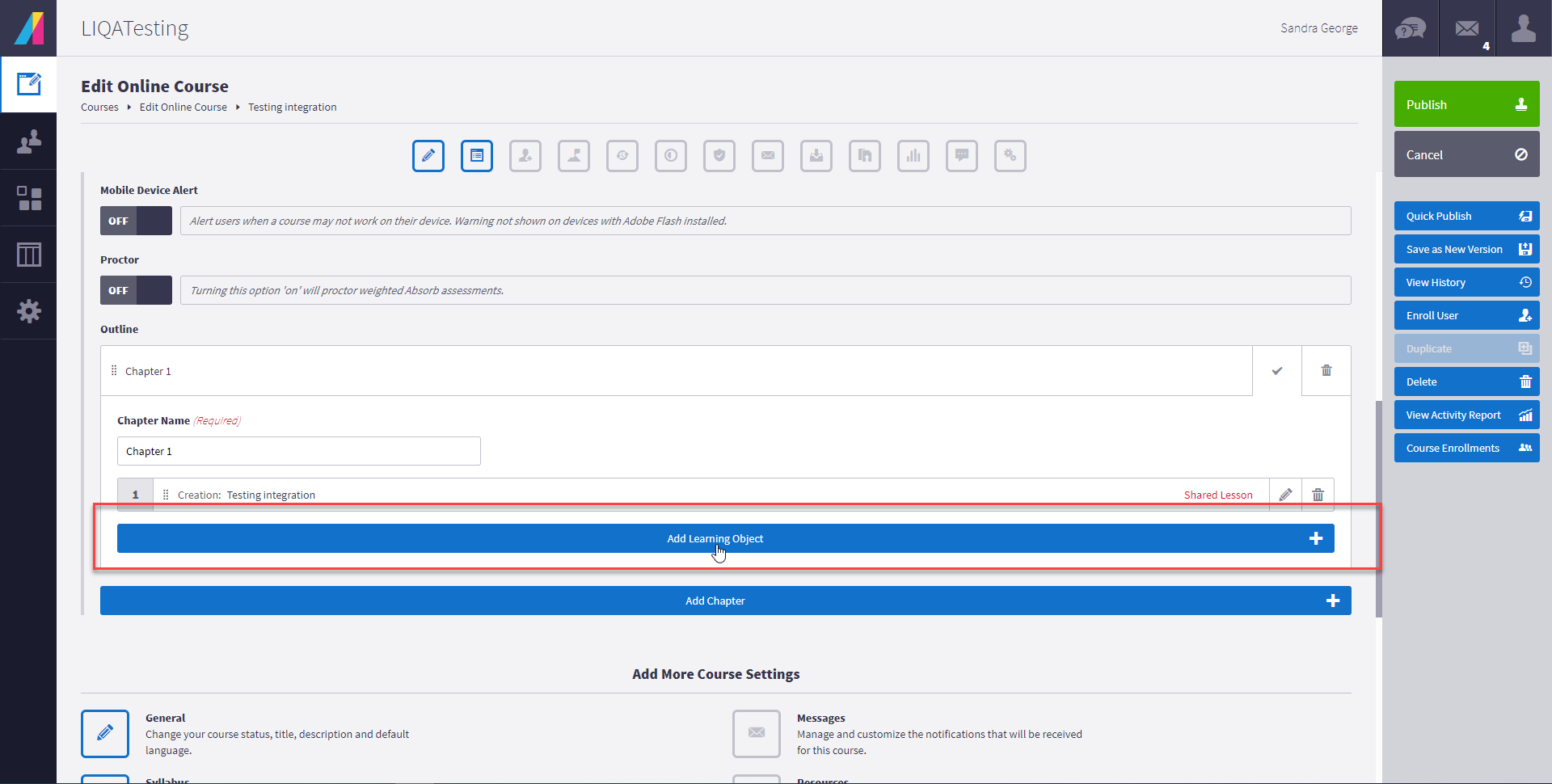
- Edit the course by "Adding a Learning Object."
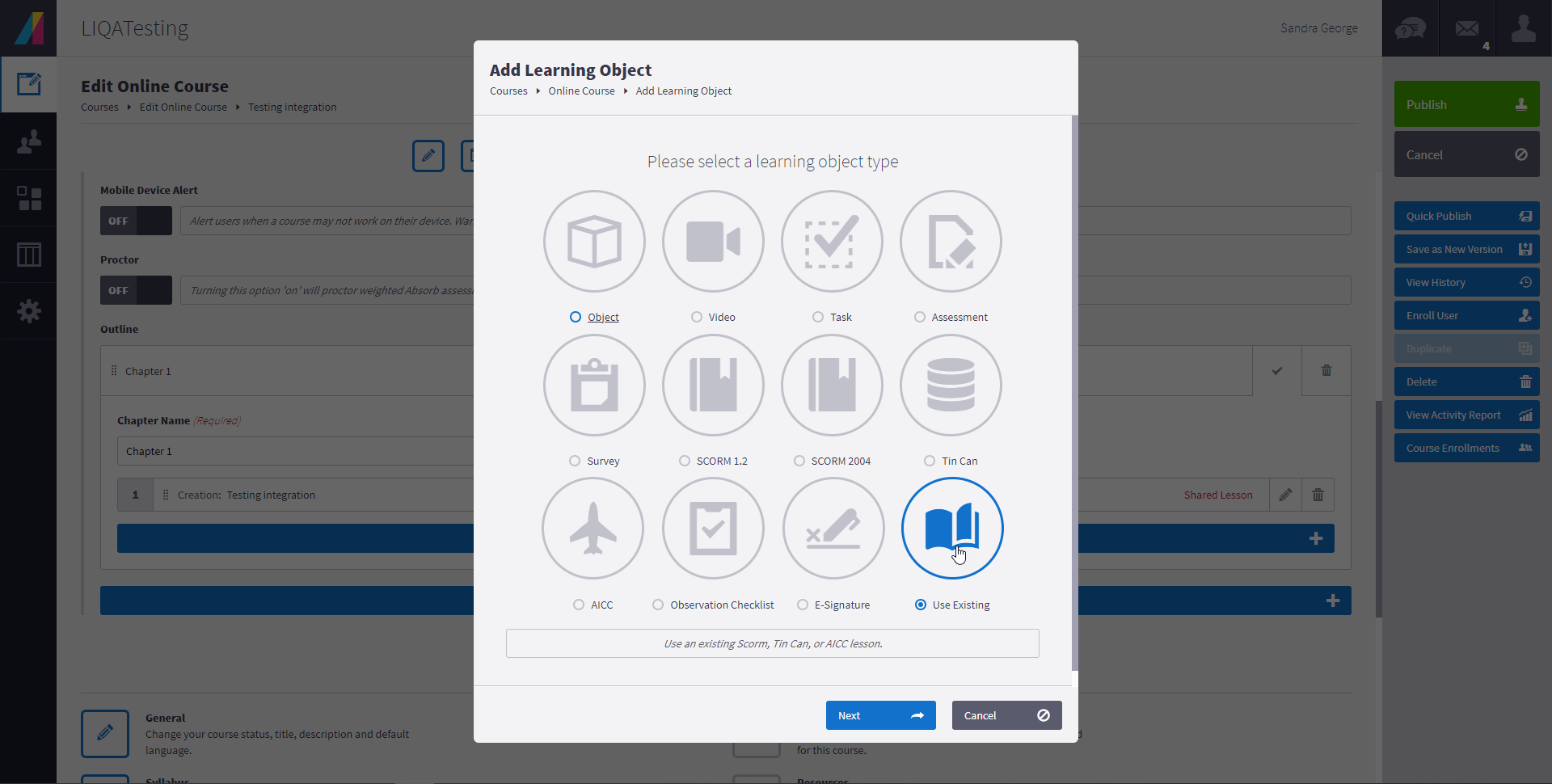
- The Create Course will be showing as a Lesson under objects. Select your desired course.
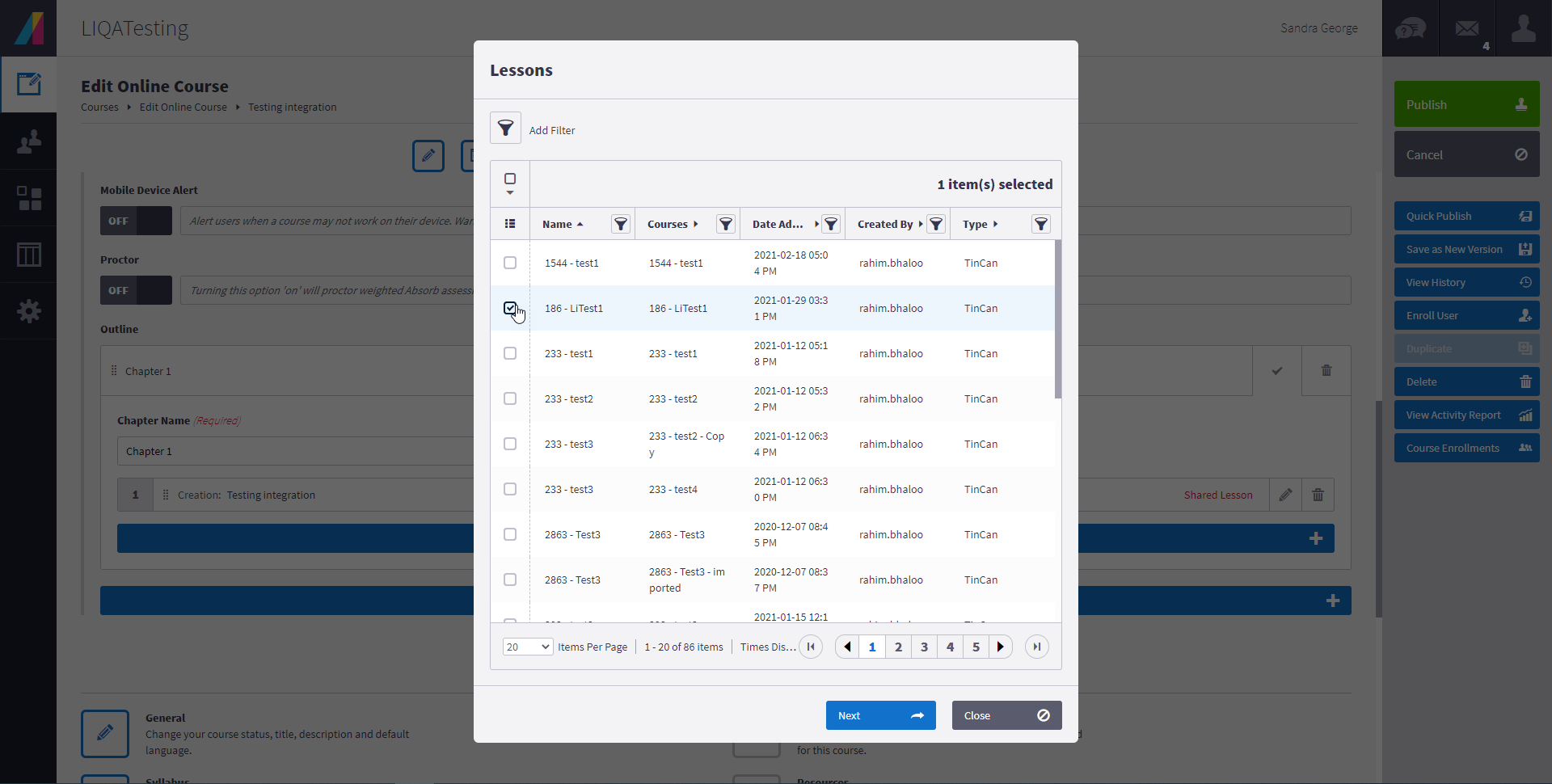
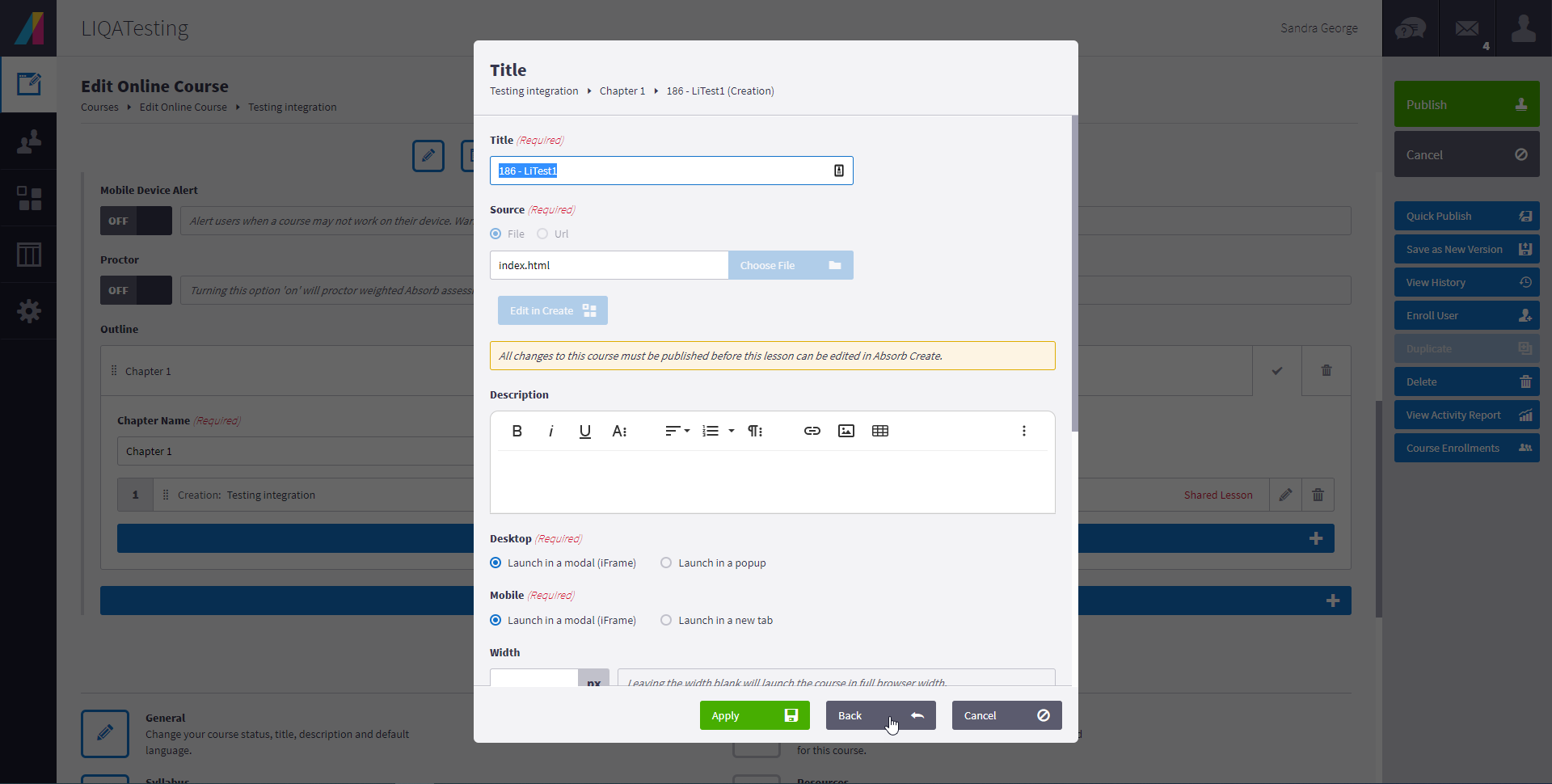
- Make updates when necessary :
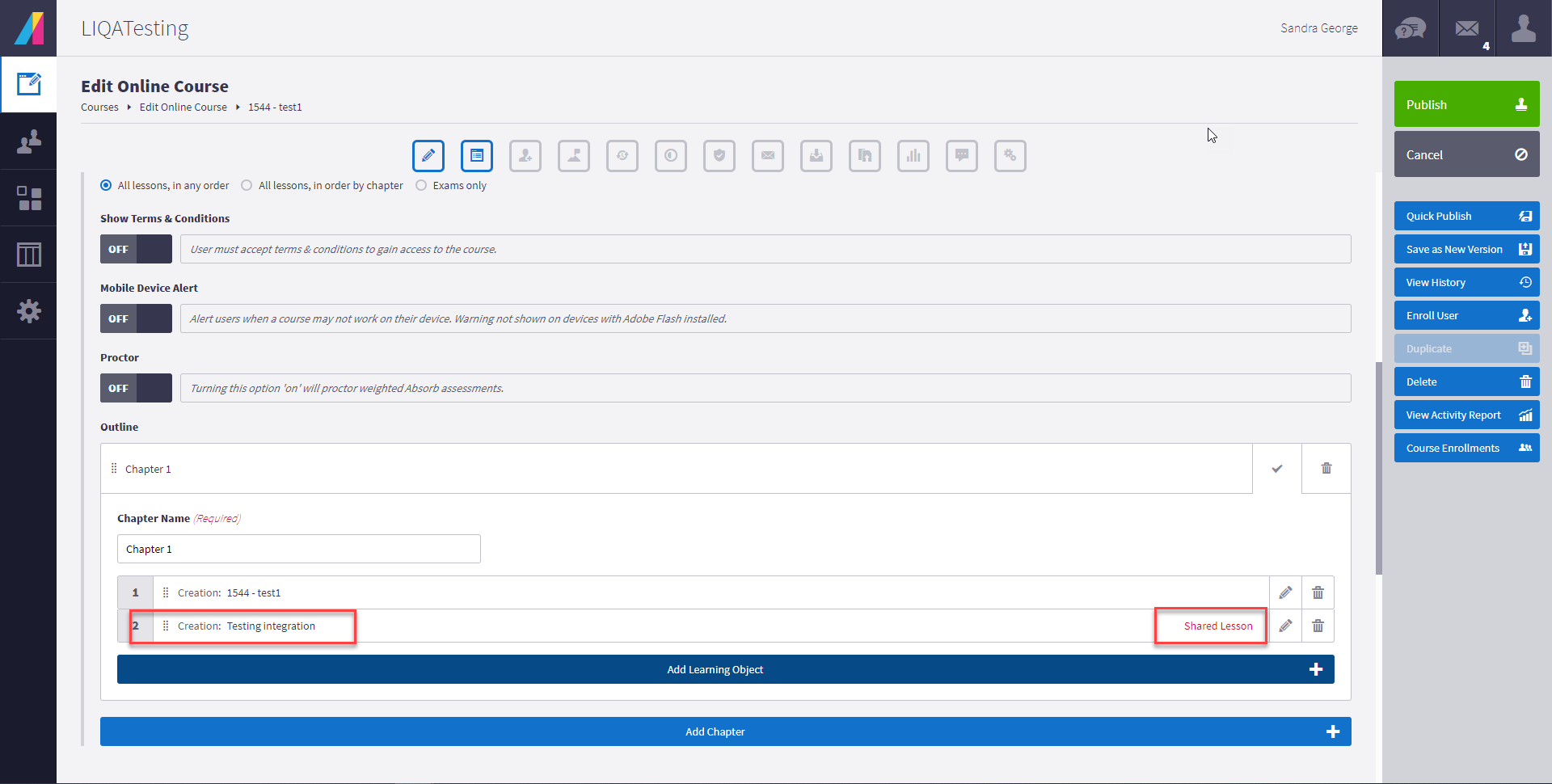
- The Course will show as a lesson under your LMS Course
- Go to Courses
-
Making updates to already published and shared courses
Note: Any updates made to an already published and shared course shall affect all objects shared among Courses.
The list of associated courses to the Create course shall be available for the user on the SkillSync LMS with a link to redirect to SkillSync LMS from Create
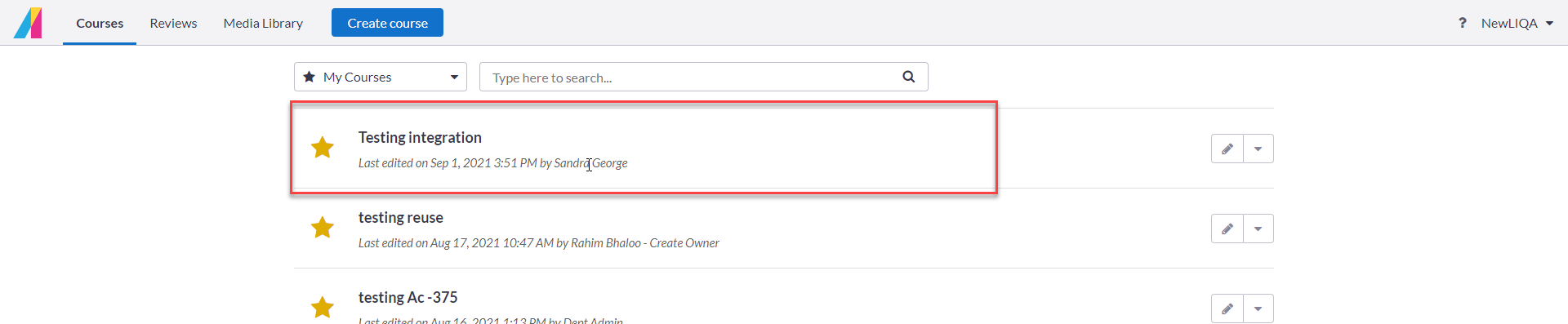
- Go to "Manage Content"
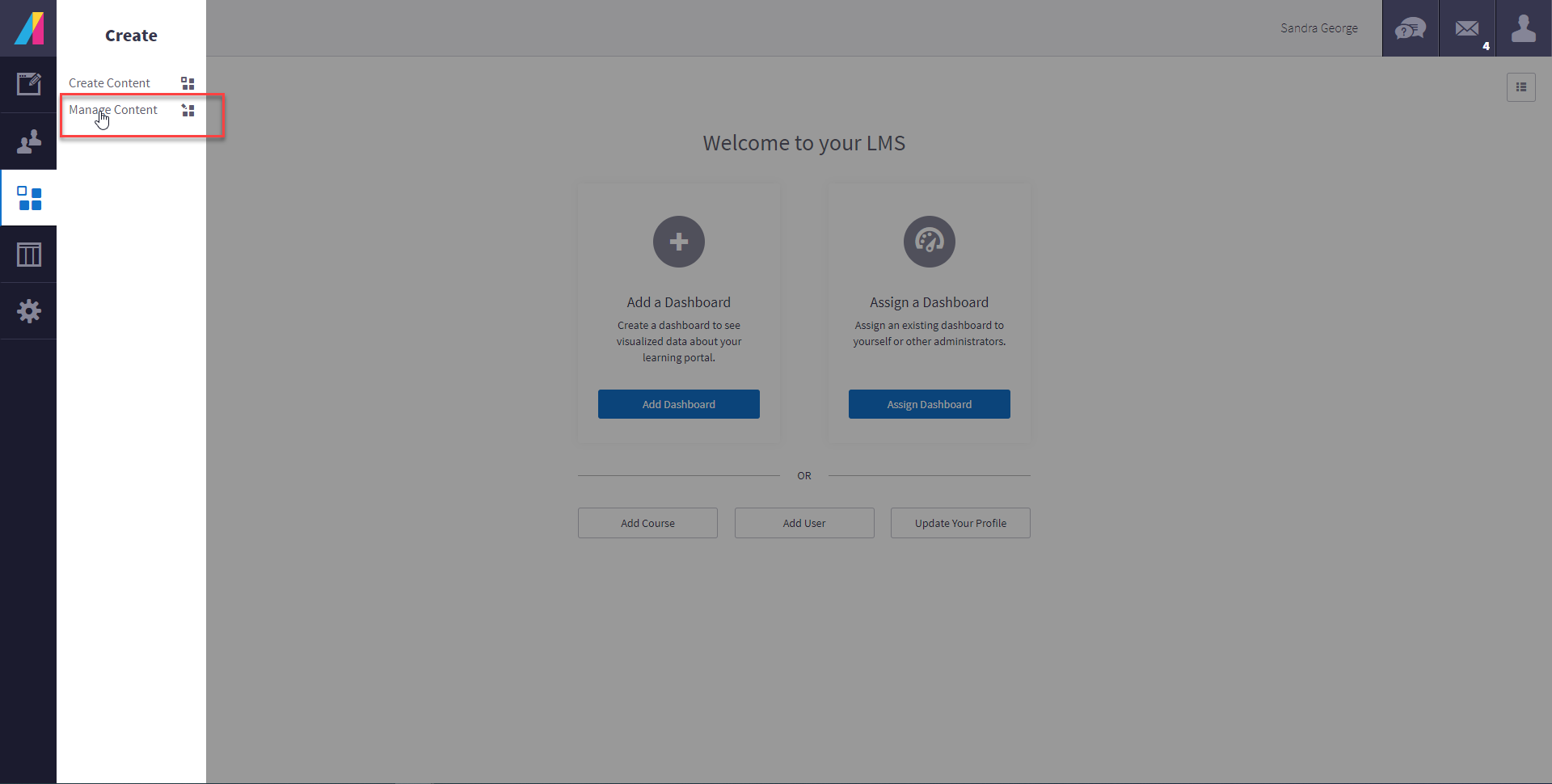
- Select the Create course you wish to update, and make changes
-
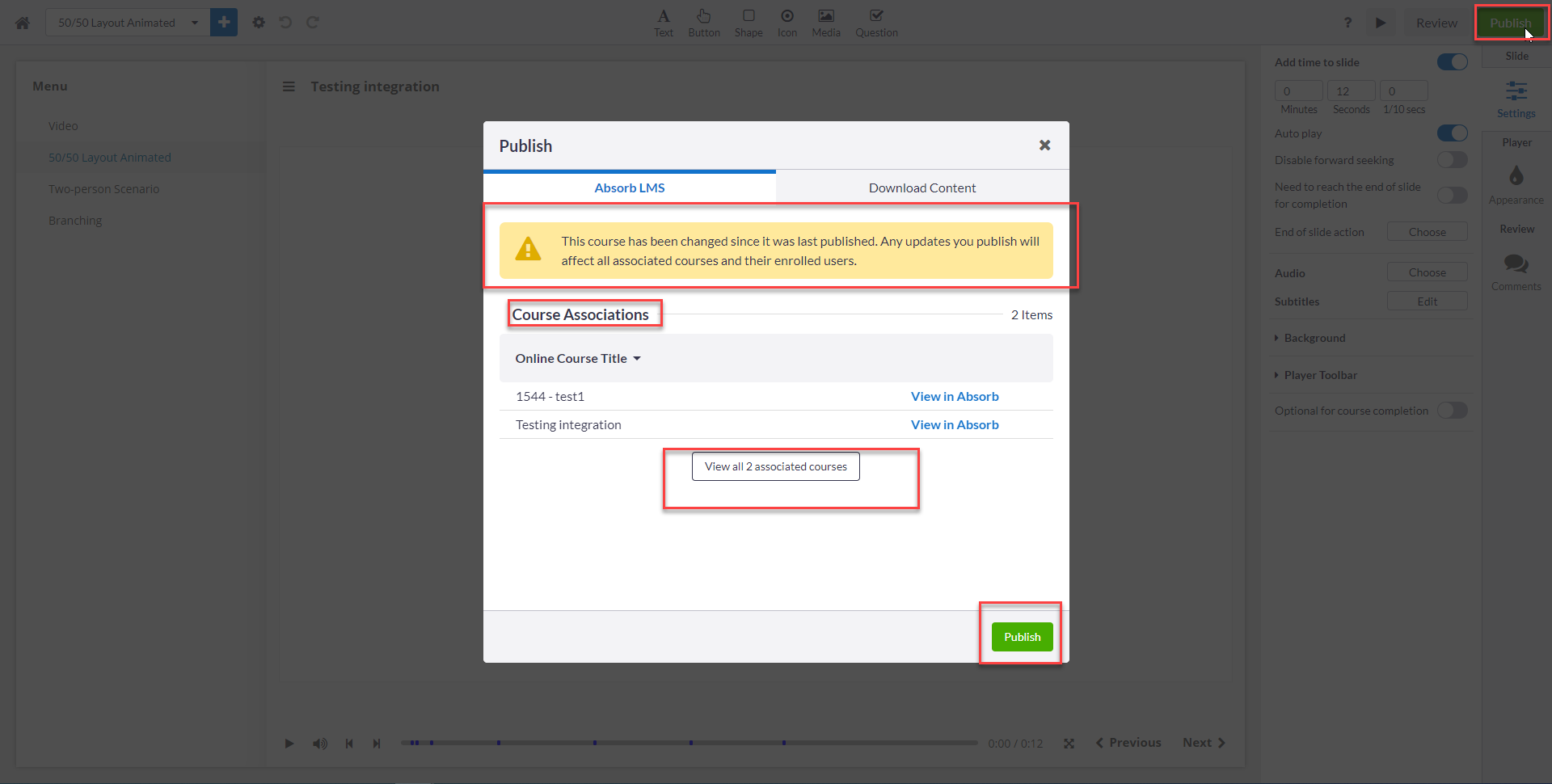
Click "Publish": This will make changes to the main Create course as well as all associations and shared lessons
To view the list of SkillSyncLMS course where the Create course is shared, up to 5 courses will show up on the Publish wizard
-
If there are more than 5 LMS courses sharing the same Create course , then the "View all x associated courses" shall redirect you to the SkillSync LMS to view the list
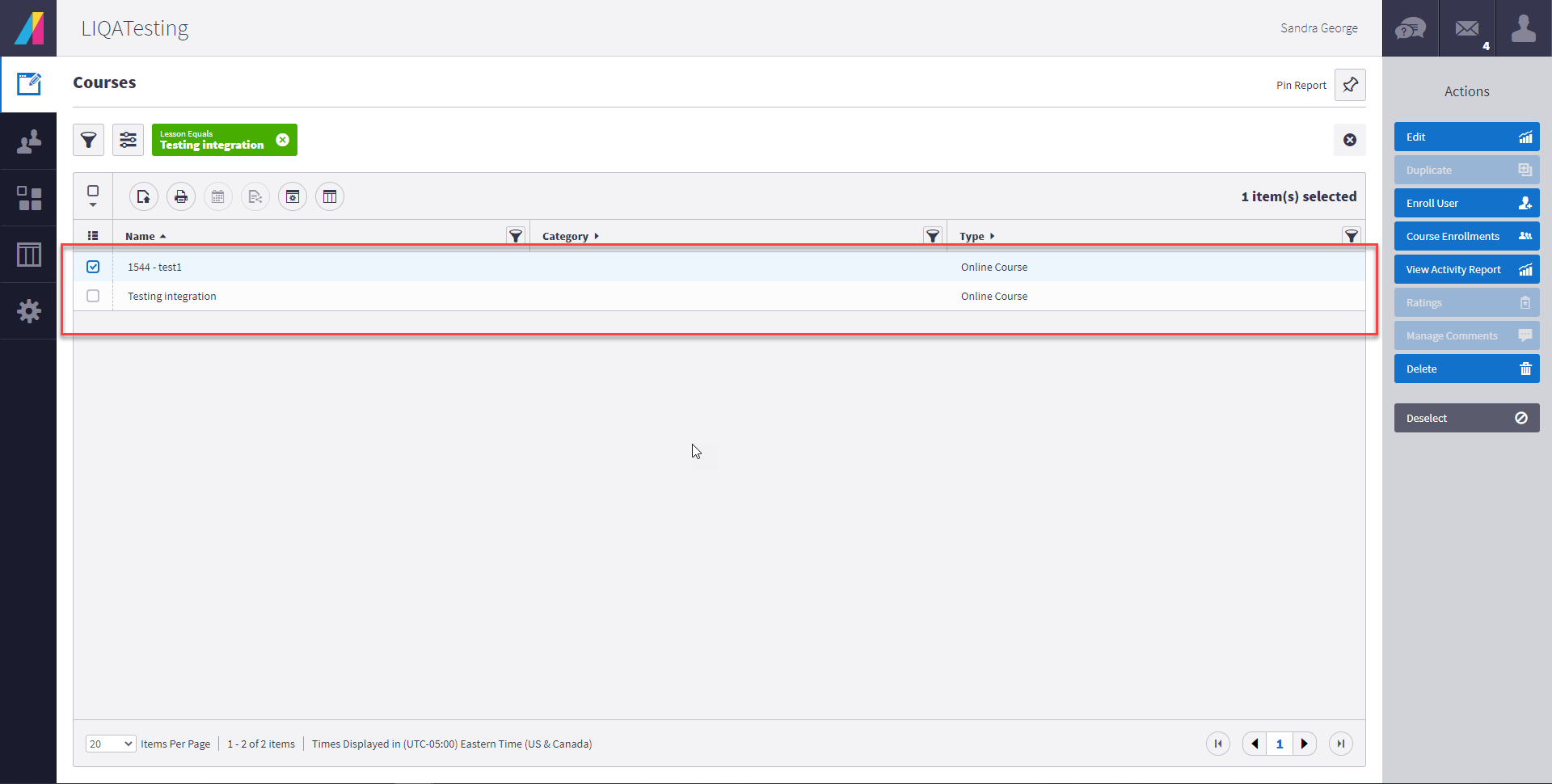
Notes: All shared create courses will have the same updates when republished from the Create platform
If the customer wishes to keep one different the association has to be revoked from the SkillSync LMS and a course duplicate shall be used.
Comments
0 comments
Article is closed for comments.